# Team settings
By integrating with your issue tracker and version control, we reveal hidden patterns about your focus and workflow to help you work better together. This guide helps your team get started with Swarmia.
## In a nutshell
Setting up is easy but requires some thinking and discussion as a team to ensure that your data is correct and that nobody gets caught by surprise.
Here are the steps in a nutshell, and the expected results:
* Configure your team memberships on Swarmia → [Contributor Settings](https://app.swarmia.com/settings/contributors) should show all your team members, and nobody else
* Map the issues the team owns → [Flow Insights](https://app.swarmia.com/insights/flow) and [Work Log](https://app.swarmia.com/work) will show data for the issues that belong to the team
* Schedule a daily digest → The team will receive a daily summary of their work in the chosen Slack or Microsoft Teams channel, at the chosen time
* Invite your team to Swarmia → [Contributor Settings](https://app.swarmia.com/settings/contributors) will show a Swarmia check mark under your team members’ names as they join
Now, let’s walk through the steps in a bit more detail.
## Set up team memberships
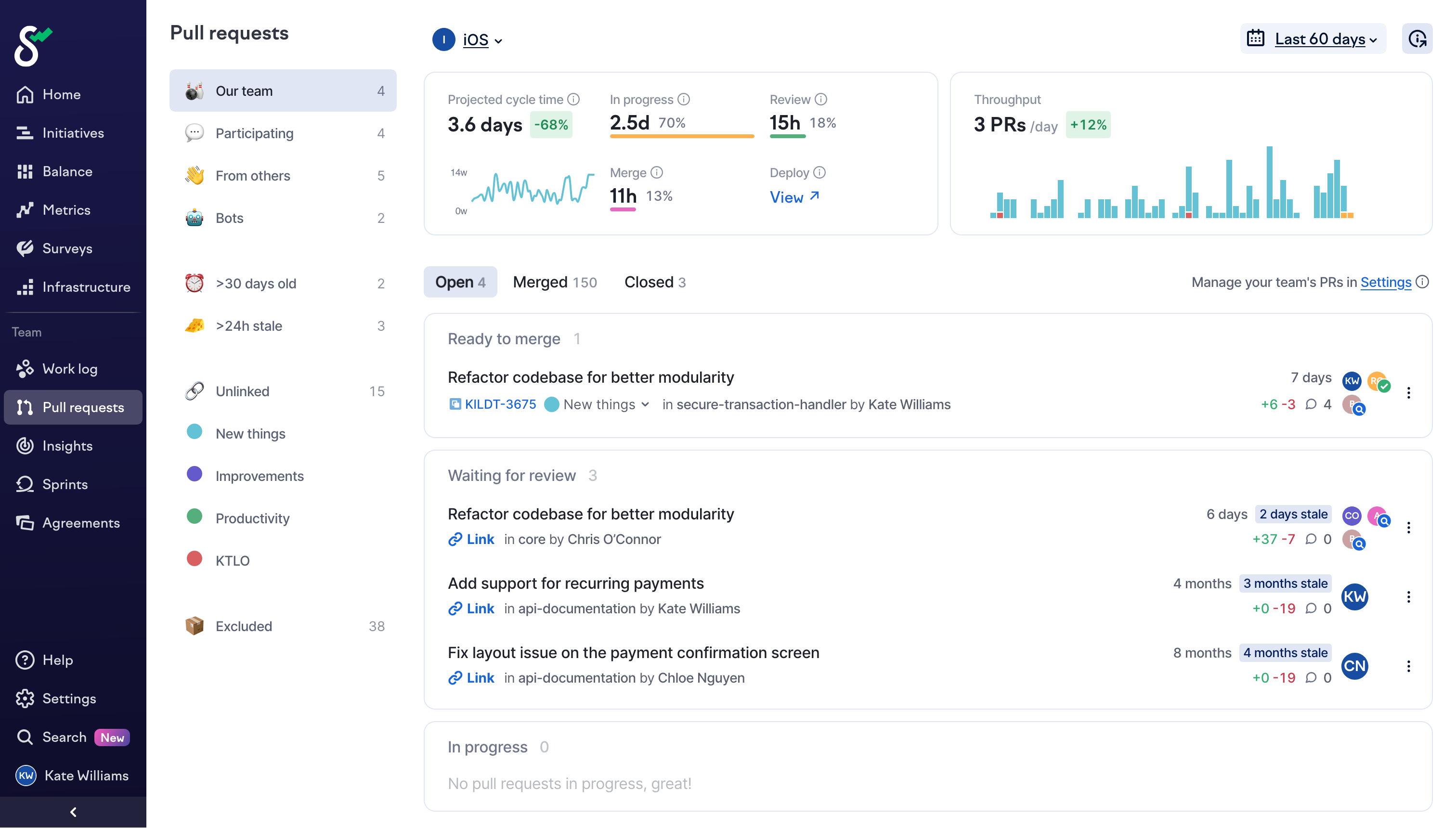
To get good data from Swarmia, it’s crucial to get your team memberships right. Among other things, Pull Requests are assigned to teams based on what teams their creators and reviewers belong to, which lets teams see all Pull Requests that are relevant to them in a simple real-time dashboard.
See [this guide](https://help.swarmia.com/creating-and-managing-teams) to configure team memberships.
The Pull Requests view is a dashboard for the team
{% hint style="info" %}
**Configure CODEOWNERS on GitHub**
We love it when teams take shared responsibility for their codebase, and when everyone has the opportunity to review each other’s contributions. A great way to do this automatically is by defining a team as the code owner in GitHub.
[Check the GitHub doc about code owners here](https://docs.github.com/en/github/creating-cloning-and-archiving-repositories/about-code-owners).
{% endhint %}
When your GitHub setup is right, this should be reflected in [Contributor settings](https://app.swarmia.com/settings/contributors). Check that all your team members, and only your team members, are displayed when you select your team from the dropdown menu. Also check that there are no duplicate identities. If there are duplicates, you can merge them by ticking their boxes and hitting the Merge button.
## Map issues that belong to the team
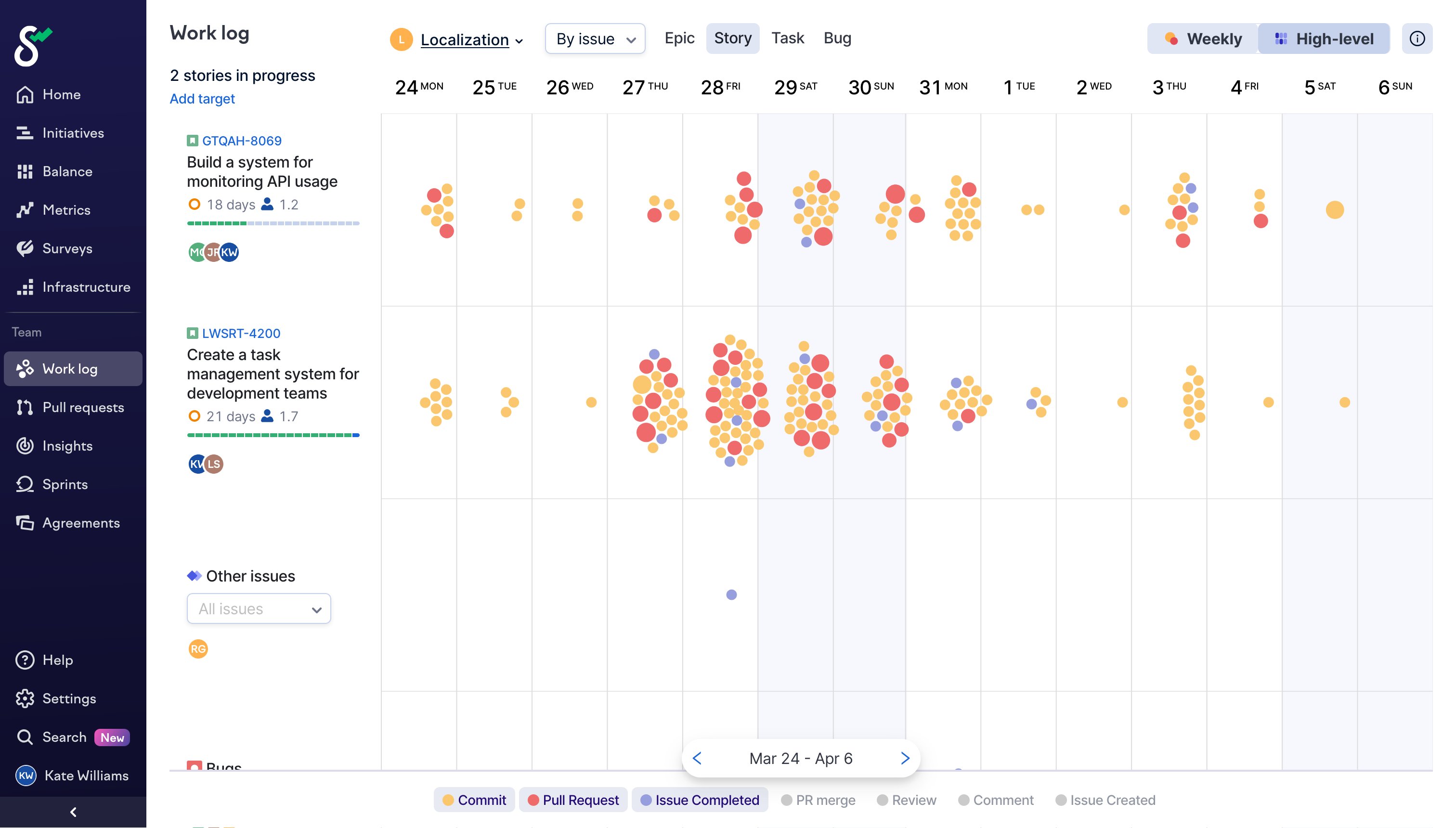
Your issue tracker tells you what was planned or expected, while your version control tells you what actually happened. Swarmia helps you connect the dots by linking Pull Requests to issues, and visualizing the relationship between the two on a timeline we call [Work Log](https://app.swarmia.com/work).
In order to take benefit of this feature, you'll need to [connect and configure](https://help.swarmia.com/getting-started/integrations/issue-trackers/jira) the Jira integration. If this has already been done for the organization, you only need to [map the team ownership](https://help.swarmia.com/jira-issue-mapping#team-ownership) to tell which issues interest your team.
Work Log connects issues from your tracker with activity from your version control
## Connect to Slack or Microsoft Teams
Lots of apps are competing for your attention on both Slack and Microsoft Teams, and we don’t blame teams who banish noisy apps to their own channels never to look at them again. We hate spam as much as you do, so in addition to judicious notifications when an action is expected, Swarmia sends exactly one message to the team per day.
{% hint style="info" %}
**Remember to talk with the team**
Don’t forget to talk with your team and get everyone’s opinion before setting up the daily digest. Sudden broadcasts about all the work that’s going on can feel disruptive if they start arriving on the team’s channel without explanation.
{% endhint %}
The daily digest is a summary of relevant Pull Requests, issues and Working Agreements. Use it as a conversation starter for your daily standup, or just a reminder to help you keep track of open topics and stick to new Working Agreements.

To set up the daily digest on Slack or Microsoft Teams for your team, go to [Settings → Team → Notifications](https://app.swarmia.com/settings/team/notifications), select your team, and schedule the digest. If you’re doing daily standup meetings with the team, try scheduling the digest to a few minutes before the meeting.
## Invite team members
It’s not necessary for developers to start using yet another web app that disrupts their workflow. Most day-to-day interaction with Swarmia such as staying on top of Pull Requests and Working Agreements happens over Slack or Microsoft Teams. However, to get personal notifications when something is expected of you, you need to create a personal Swarmia account and connect it to Slack or Microsoft Teams.

To invite your team members, just copy the invitation link either from the [front page of Swarmia](https://app.swarmia.com/) or from the [Contributors page](https://app.swarmia.com/settings/contributors) and share it with your team. If they have access to your GitHub organization, the link lets them access the tool and create an account.
If some team members already have accounts but have not connected Slack or Microsoft Teams, they can do so by navigating to [Manage notifications](https://app.swarmia.com/notifications) under your profile picture and clicking on **Slack** or **Microsoft Teams**.
## Continuous improvement with Swarmia
### **Managing pull requests**
Lack of visibility is a common reason why Pull Requests are stuck in a queue or just forgotten. The first thing we recommend is to start regularly checking the [Pull Requests view](https://app.swarmia.com/pull-requests), where it’s easy to spot problematic Pull Requests and get a clear picture of the team’s throughput. Going a bit further, it’s a great idea to get into the habit of quick code reviews with a [Working Agreement](https://app.swarmia.com/working-agreements). You can read more about reviewing Pull Requests faster with Swarmia [in our case study](https://help.swarmia.com/review-code-faster).
In the Pull Requests view, you can also manually link Pull Requests to issues. Linking Pull Requests to issues is another habit worth getting into, as it enables Swarmia to reveal hidden patterns about your focus and workflow in Work Log.
{% hint style="info" %}
**Linking Pull Requests to issues**
You don’t need to visit Swarmia to link Pull Requests to issues. It’s enough to include the issue key in the Pull Request title (e.g. Foobar \[DEV-123]) or start the GitHub Branch name with the issue key (e.g. DEV-123-foobar). And if you merge an unlinked Pull Request, Swarmia will send you a message on Slack where you can select an issue from a dropdown.
{% endhint %}
### **Retrospectives with Swarmia**
Getting into the habit of discussing [Pull Requests](https://app.swarmia.com/pull-requests) and analyzing why some get stuck is a great way to embark on the journey of continuous improvement. Systematically analyzing exceptions to Pull Requests and other Working Agreements will reveal new areas of improvement that you can address as a team.
Are you working on too many things at once? Are you working and learning effectively as a team? As long as you’re linking Pull Requests to issues, reviewing the [Work Log](https://app.swarmia.com/work) in retrospective meetings will reveal any issues with focus, siloing and flow that you may be experiencing, [among other important patterns](https://help.swarmia.com/diagnosing-common-issues-with-work-log).
Are your builds fast and reliable so developers can create small Pull Requests that are easy to review and merge with confidence? [Continuous Integration Insights](https://app.swarmia.com/insights/quality/ci) will help you understand and prioritize possible issues with the build pipeline.
{% hint style="info" %}
**Make it a habit**
To drive continuous improvement systematically as a team, consider getting into the habit of analyzing [exceptions to Working Agreements](https://help.swarmia.com/about-working-agreements) and [patterns in Work Log](https://help.swarmia.com/diagnosing-common-issues-with-work-log) in your team retrospective meetings.
{% endhint %}
### **Get in touch**
Do you have any questions or comments about using Swarmia? Is something missing, or can we do something differently to better support your team? Don’t hesitate to reach out on the in app chat or Slack, or just email us at .